
Why SQL Server Slows Down Under Load (Even When CPU and Storage Look Fine)
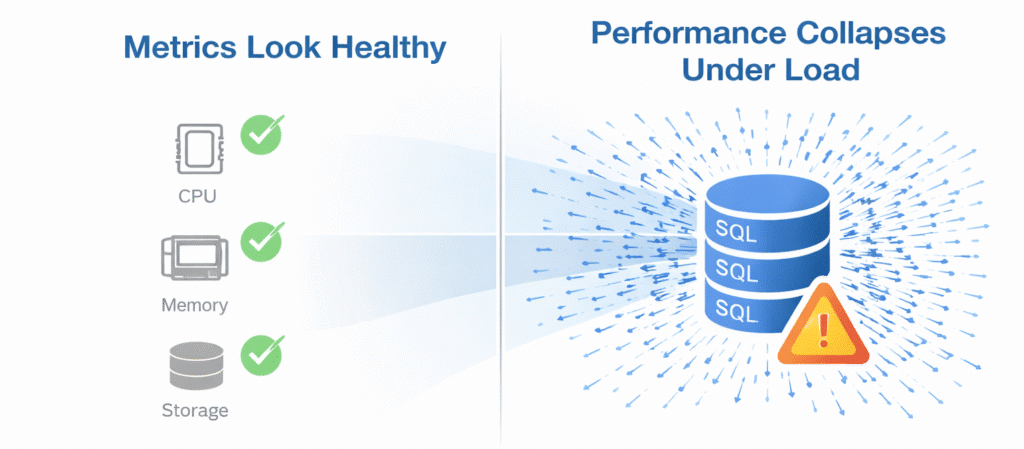
When SQL Server slows down under load, performance issues often feel mysterious. One minute reports are running smoothly, and the next minute queries take forever to complete — even though CPU utilization, memory usage, and storage metrics look normal. Users complain. IT teams are under pressure to “fix it now” without replacing infrastructure. Yet nothing appears obviously broken.
This experience — where performance degrades under concurrency and peak load despite seemingly healthy hardware — is one of the most misunderstood behaviors in SQL Server environments.
In many cases, this isn’t a problem with SQL Server itself, the hardware, or the storage array. It’s how Windows generates and processes I/O under real-world workloads. This is the same root cause behind many disk latency and storage performance investigations.
Common Symptoms When SQL Server Slows Down Under Load
Administrators often recognize SQL Server performance degradation when they observe:
- Long-running reports that are acceptable off-hours but slow sharply during peak loads
- High query execution times only under concurrency
- CPU utilization is moderate even when performance is poor
- Storage I/O appears normal in average latency metrics
- Slow response only under load, not consistently
- Temporary relief after reboots, but degradation returns
- Pressure to add hardware, despite systems appearing overprovisioned
These symptoms usually trigger support tickets, escalations, or prolonged performance investigations.
Why Traditional Monitoring Metrics Can Be Misleading
When a SQL Server slows down, most administrators instinctively look to:
- CPU utilization
- Memory pressure
- Storage latency
- Network saturation
But traditional monitoring tools often paint an incomplete picture:
- CPU and memory may not be the bottleneck
- Average storage latency hides bursts of activity
- Storage controllers may show healthy averages
- Read/write bursts during peak SQL activity are not reflected accurately
Because of this, spikes in inefficient I/O often go unnoticed until performance collapses under load.

The Hidden Role of Windows I/O Inside SQL Server Workloads
SQL Server’s internal operations generate a large number of small, random I/O requests during concurrency — especially for:
- Parallel query execution
- Index operations
- Large data scans
- Mixed read/write workloads
- DBCC checks and consistency scans
Windows handles I/O at the logical disk level, unaware of the underlying physical storage topology. This results in:
- Many small, split I/O operations
- Excessive queue depth at the logical layer
- Degraded responsiveness under concurrency
- Burst behavior during login storms, reporting schedules, and batch windows
Even storage arrays with excellent metrics (IOPS, throughput) can appear healthy, while SQL performance craters.
Why Adding Hardware Isn’t Always the Solution
When SQL Server slows down under load, adding hardware often treats the symptom — not the cause. Upgrading to faster storage, adding more CPUs, or increasing memory can temporarily alleviate symptoms.
But without addressing the underlying I/O inefficiency:
- The improvement is often short-lived
- Performance degrades again as workloads grow
- Costs escalate with hardware upgrades
- SQL Server still struggles under concurrency
Hardware alone does not fix how I/O is generated and processed.
Learn more about delaying hardware upgrades without sacrificing performance.
A Better Way: Reducing Inefficient SQL I/O
Instead of reacting with hardware upgrades, many teams focus on reducing unnecessary I/O before it reaches the storage layer.
By optimizing how Windows generates read and write operations — consolidating inefficient patterns and intelligently caching frequently accessed data — SQL Server performance improves without infrastructure changes.
👉 Learn how DymaxIO reduces unnecessary I/O directly inside Windows to improve SQL Server performance.
DymaxIO works by:
- Significantly reducing unnecessary split I/O
- Caching hot data in available system memory
- Improving throughput without contention
- Supporting peak concurrency without tuning storage
What Improved SQL Performance Looks Like
Organizations that address inefficient I/O in SQL Server environments commonly see:
- Faster query execution under peak load
- More consistent reporting time
- Reduced I/O wait time even under concurrency
- Lower pressure to replace hardware
- Better utilization of existing infrastructure
- Happier end users and business stakeholders
How to Diagnose SQL Performance Problems Yourself

Before assuming hardware is at fault, you can:
- Use Resource Monitor to observe disk response time and queue length
- Compare performance during off-peak vs. peak workloads
- Review SQL Server execution plans to identify scans, missing indexes, or large read operations that generate excessive I/O
- Monitor Windows I/O patterns with tools like Performance Monitor
- Correlate response time with user complaint timelines
In SQL Server Management Studio (SSMS), enable the Include Actual Execution Plan option to determine whether queries are performing full table scans or generating high logical reads — both of which increase I/O pressure and amplify storage bottlenecks under concurrency.
To gain deeper visibility into how Windows is generating and servicing I/O across the system, you can also run the free Condusiv I/O Assessment Tool, which analyzes disk response time, queue depth, and workload behavior over time.
These diagnostic steps help confirm whether the issue is inefficient I/O, not storage failure.
Summary
SQL Server performance degradation under load often feels mysterious because nothing looks obviously broken. Hardware can appear healthy. Storage metrics can look fine. But inefficient Windows I/O patterns — especially under concurrency — are a common root cause.
Addressing this problem at the Windows stack level helps improve performance without costly upgrades or infrastructure changes.
How To Find Out If Your Windows Servers Have an I/O Performance Problem
See How Much I/O Your SQL Server Is Wasting
Run the free 30-day DymaxIO trial and see how much unnecessary I/O your system can eliminate — with true “Set It and Forget It®” ease.
• No reboot required
• No credit card required
• Works on physical, virtual, and cloud servers